
How to manage work notifications after hours
Use Android’s Do Not Disturb for general quiet hours. For a specific app or phrase, add days and times to a Quietly rule. Removal happens after the notification arrives, so sound or a banner may occur first.
On this page
Choose between quiet hours and notification removal
Start with the work app's own notification schedule. Android's Do Not Disturb or Modes settings can also control interruptions and allow selected people or apps. Names, features, and paths vary by Android version and manufacturer.
Use those controls when your primary goal is avoiding sound or visual interruptions. Quietly serves a different purpose: it removes matching posted notifications during a rule's active days and hours. A sound or banner can happen before removal, so its schedule should not be treated as a guaranteed silence switch.
Decide exactly what should stop
Choose one app and describe the boundary in ordinary language: 'Remove this app's routine project updates on weekday evenings.' Then decide whether every notification from the app fits that boundary or whether you need a specific title or text condition.
The distinction matters if personal messages and work updates share an app. An app-wide rule cannot infer that a direct message is personal or urgent. Check the notification format before deciding whether a narrower pattern can express what you want.
Add days and times to a Quietly rule
You can add a schedule when creating or editing a rule. The free version includes scheduling within its limit of five saved rules. Start with a single period so it is clear which rule is responsible for an outcome.
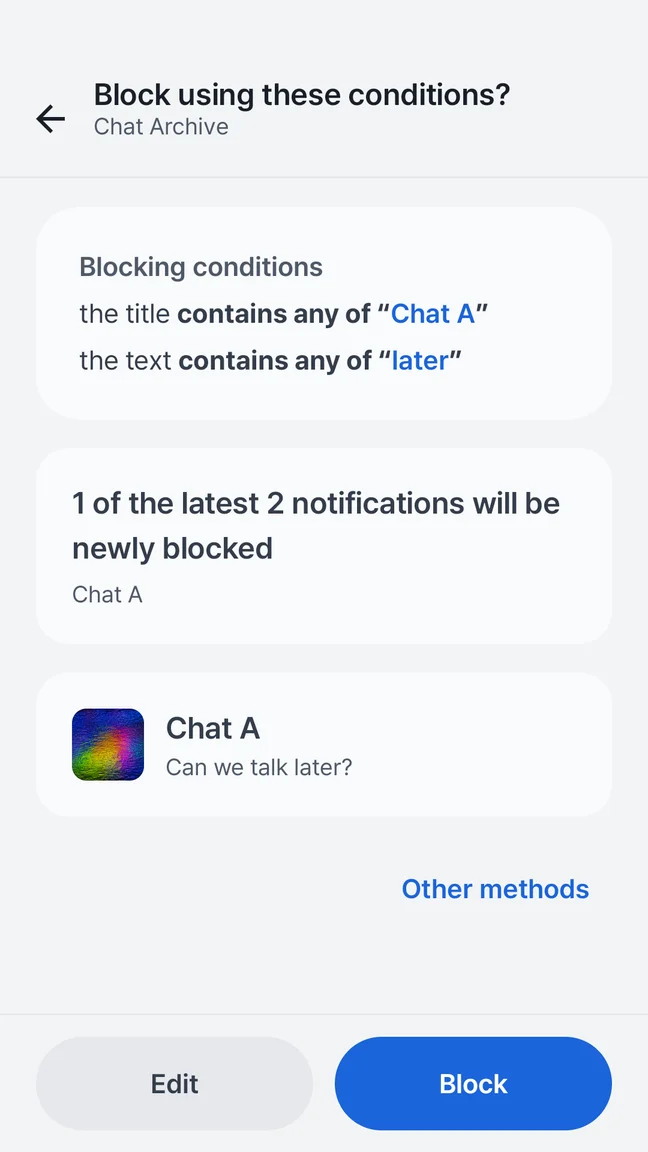
- Create or edit a Block rule for the correct work app and review its title or text conditions.
- In Apply time, change the rule from always active to selected days and times.
- Choose the days the blocking period begins, then set different start and end times.
- Review the complete rule summary, save it, and check newly arriving alerts inside and outside the period.
Understand a schedule that crosses midnight
For an illustrative Monday 18:00 to 09:00 rule, Monday is the start day: the period continues into Tuesday morning. Quietly includes the start time and excludes the end time. At 09:00, that scheduled period has ended.
Selecting Monday through Friday with those times creates five overnight periods, including Friday evening into Saturday morning. It does not cover every hour of the weekend. Write down the full periods you intend before adding another rule, and review device time settings if your routine changes during travel.
Make exceptions and recovery deliberate
Quietly's Important notifications only option depends on the patterns you define. It does not know who is on call or which conversation is an emergency. A matching Block rule also takes precedence, so do not assume an important-pattern rule will override an existing block.
Disable a rule when its scope is wrong, or pause blocking when you temporarily need notifications to pass. Ending a schedule does not replay alerts removed earlier. If you want to inspect successful blocks later, review the optional block-record and content-recording settings in advance.
Your next step
Use Android interruption controls for quiet, and scheduled Quietly rules for selective removal. Check both sides of the time boundary before relying on the routine.
Explore this feature in Quietly, or get help with setup.
Sources and further reading
Checked against Quietly’s product documentation. Android menus and notification behavior vary by device and source app.
Small rules. A noticeable difference.
Start from an unwanted notification, review the proposed conditions, and save a rule you understand. The free app includes up to five saved rules, including schedules.
- Choose the sending app
- Match a phrase in the title or notification text
- Add days and times when you need a schedule
Android 7.0+ · Free with ads · No account
Notification blocking