
How to block Android notifications by keyword
Choose the sending app and a specific phrase in the notification title or text. Quietly removes matching alerts after Android posts them; unrelated wording stays outside that rule. Free includes five saved rules.
On this page
Start with the app's own controls
Check the sending app's notification preferences first. Android may also let you disable a notification category. If a separate promotions switch solves the problem, you can stop there.
A text rule helps when an app mixes the updates you want with repeated messages you do not. Quietly can match an app, a title, and notification text. You choose the condition; the app does not decide which messages matter to you.
Choose a phrase you actually receive
Consider this illustrative example: a shopping app sends both 'Flash sale: 30% off today' and 'Your order arrives tomorrow.' A rule for that app with notification text containing 'Flash sale' matches the first example. The order message does not match that condition.
Use the exact recurring phrase from your own notifications. A broad word such as 'today' could also match a delivery update or payment reminder. Limiting the rule to the sending app prevents the same phrase in an unrelated app from matching this rule.
Build the rule from a saved notification
After installing Quietly, review its disclosure and enable Android notification access if you agree. It can then record notifications delivered while processing is active. You can create a rule from one of those records instead of guessing how the app formats its alerts.
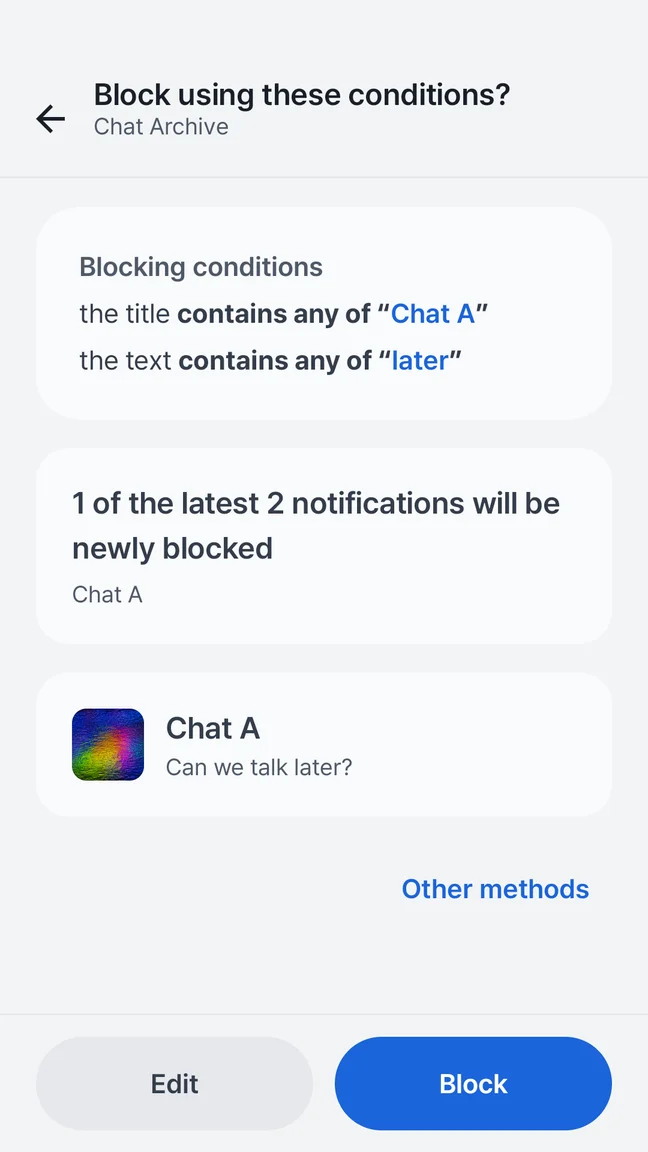
- Open an unwanted notification in Quietly's History and choose Block.
- Review the proposed conditions. Choose Edit or another available method if the proposal is too broad.
- Keep the correct sending app selected. Set a specific title or text condition using a literal phrase where possible.
- Use the Block rule type, review the summary, and save the rule. Start with one rule before adding more.
Check matching alerts and nonmatching alerts
When both title and text conditions are present, both must match, alongside the selected app. A rule may therefore be narrower than you expect if you leave an old title condition in place. Review every part of its summary.
Observe newly arriving notifications from that app, including the kind you want to keep. A recent-history impact estimate, when shown, is a useful sample rather than a guarantee about future messages. If the rule catches too much, disable it and shorten its scope before enabling it again.
Know what blocking changes
Quietly removes matching notifications after Android posts them. A sound or banner may occur first, and Android can restrict removal of some system or ongoing notifications. Use the sending app's settings or Android sound controls when preventing the interruption itself is the priority.
The free version supports up to five saved rules, including text and schedule conditions. Pro removes that saved-rule limit. Neither version can guarantee that a broad rule will preserve every notification you consider important.
Your next step
Start with one app and one unmistakable phrase. Review what arrives next, then refine the rule. Small, understandable conditions are easier to trust and undo.
Explore this feature in Quietly, or get help with setup.
Sources and further reading
Checked against Quietly’s product documentation. Android menus and notification behavior vary by device and source app.
Small rules. A noticeable difference.
Start from an unwanted notification, review the proposed conditions, and save a rule you understand. The free app includes up to five saved rules, including schedules.
- Choose the sending app
- Match a phrase in the title or notification text
- Add days and times when you need a schedule
Android 7.0+ · Free with ads · No account
Notification blocking