
Stop Promotional Notifications on Android
Turn off promotions in the app or Android notification categories to keep useful updates. If they share a category, a narrow Quietly rule can remove matching alerts after they arrive.
On this page
Check the app's marketing settings
Press and hold the promotion to identify the app that posted it and open its notification controls, where available. An alert from a browser needs different settings from a shopping app or a message inside a chat.
In the sending app, look for settings named Promotions, Offers, Marketing, or similar. Disable those updates while leaving delivery, booking, and account notifications enabled if you need them. The exact options depend on the app.
Turn off the promotional category
In Android Settings, open Notifications → App notifications, choose the sending app, and look for its notification categories. You can also reach the relevant controls by pressing and holding an alert. If promotions have their own category, disable that category and keep the useful ones on. See Android's notification settings.
On Samsung, enable category controls if they are hidden
- Open Settings → Notifications → Advanced settings.
- Turn on Manage notification categories for each app.
- Return to Notifications → App notifications and choose the app.
- Open Notification categories and disable only the promotional category, if one exists.
These steps follow Samsung's notification category instructions. Names vary by software version, and some apps do not provide separate categories. If offers and delivery updates share a category, switching it off affects both.
Use a narrow Quietly keyword rule
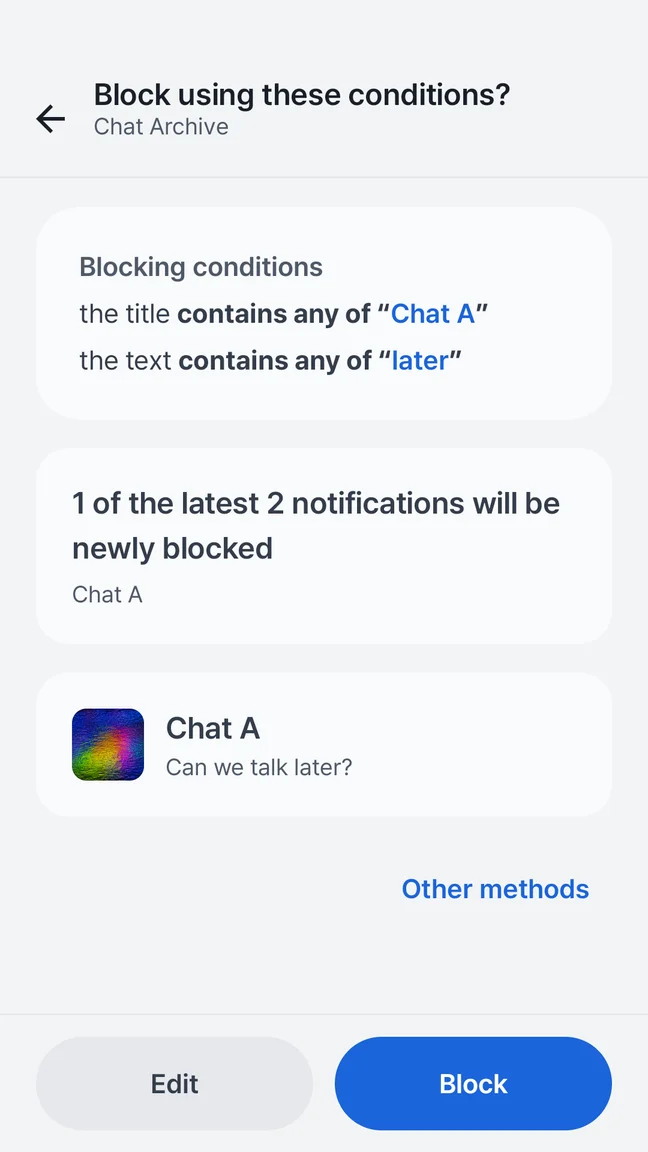
Quietly can match a selected app and wording in a notification's title or text. Start with a phrase that is distinctive to the repeated promotion. It does not automatically recognize every advertisement or decide which messages are important.
For example, imagine a fictional app named Shopping that keeps repeating the phrase flash sale:
| Example alert from Shopping | Matches “flash sale”? | Result of this rule |
|---|---|---|
| Flash sale: 30% off until midnight. | Yes | Remove the matching promotional alert after it is posted. |
| Your order arrives today, between 2 and 4 pm. | No | Leave the delivery alert available. |
This is an illustrative example, not a rule tested against your shopping app. Another active rule could still match the delivery alert. Check the wording your app actually sends before saving a rule.
Checked against Quietly’s product documentation. Android menus and notification behavior vary by device and source app.
Small rules. A noticeable difference.
Start from an unwanted notification, review the proposed conditions, and save a rule you understand. The free app includes up to five saved rules, including schedules.
- Choose the sending app
- Match a phrase in the title or notification text
- Add days and times when you need a schedule
Android 7.0+ · Free with ads · No account
Notification blockingCreate the rule and check it
- Read Quietly's processing explanation, give consent if you agree, and enable Android notification access.
- Let a new promotion appear in History, open its detail, and choose Block.
- Review the selected app and text condition. In the example above, that is Shopping and flash sale; for your app, use its own distinctive phrase.
- Save the rule and check subsequent promotions and useful updates. Disable or narrow the rule if it removes an alert you need.
The free version allows 5 saved rules, including schedules. Read the keyword rule guide for more examples, or the notification access guide if processing is not working.
Check results and limits
Quietly acts after Android posts a notification. A matching alert may already have made a sound or briefly shown a banner. Use the app's own controls, category settings, or Android interruption settings when you need to prevent those interruptions.
For this task, start with a specific Block rule. Important notifications only is a separate mode that blocks notifications outside permitted patterns; a matching Block rule still takes priority. An important-pattern rule is not an override for a block.
Block records are optional, and saving their content is a separate choice. An absent record does not prove an alert never arrived. Recheck your rules when an app changes its wording, and keep the original category switches when they solve the problem.
Explore Quietly's notification blocker, see setup help, or check Quietly on Google Play.