What notification access lets Quietly read
Notification access lets Quietly read the notifications Android delivers, including available message previews. Content stays on your device; ads and usage analytics are separate. You can stop processing and revoke access.
On this page
Decide whether you need notification access
If Android's own notification settings solve your problem, you can use those without giving Quietly access. Recording alerts and applying content rules require more: Quietly needs to receive the notifications Android makes available to its notification listener.
Android notification access is a meaningful permission. Read the explanation shown by your phone and Quietly before enabling it. You can decline; Quietly then cannot perform its notification recording and blocking functions. Giving permission does not make missing or hidden message content available.
What can appear in a notification record
With consent and access, Quietly can read the sending app, notification content, timing, and available conversation information. Depending on the source notification, this may include sender images, icons, or an attached preview image. The available fields differ across apps and messages.
That means notification history can contain personal conversation previews or other sensitive details that the sending app includes. Quietly does not need your messaging password, does not sign into those accounts, and cannot retrieve an entire conversation simply because a preview arrived.
Local notification content and separate network activity
Your notification content, rules, searches, and on-device Insights stay in Quietly's local storage. They are excluded from its Firebase Analytics events and ad requests. Quietly has no account or developer-operated notification-content cloud, and that local data is excluded from backup.
This does not mean the whole app never connects to the internet. It uses limited Firebase analytics and, in the free version after required consent, Google advertising. Those services can process separate app, device, diagnostic, and network information. Google Play handles the optional one-time Pro purchase; Pro removes ads.
Choose what to retain
Retention can be 7, 30, or 90 days, or until you manually delete records. Shortening it can delete older history. Choose based on how far back you need to search, rather than collecting more simply because a longer period is available.
Excluding an app from History deletes its existing saved history and prevents future history storage for that app. Its blocking rules can still apply. Successful block records and their notification content are separate options that remain off until enabled. Excluding history is therefore different from turning off processing.
Stop collection and delete data separately
Stopping Quietly notification processing prevents it from reading and blocking new notifications while preserving saved history and rules. It does not automatically revoke the Android permission. Deleting history removes stored records but does not stop new ones if processing remains enabled.
- In Quietly's data and privacy settings, choose Stop Quietly notification processing when you want new processing to stop.
- To revoke system access too, open Android notification access settings and turn Quietly off. The exact menu varies by device.
- Delete notification history if you also want existing saved records removed, or use the full local reset for history, rules, and related local settings.
- Read the confirmation carefully: deleted local notification history cannot be recovered by granting access again.
Your next step
Permission, processing, retention, and deletion are separate controls. Choose each deliberately, and keep only the notification records you expect to use.
Explore this feature in Quietly, or get help with setup.
Sources and further reading
Checked against Quietly’s product documentation. Android menus and notification behavior vary by device and source app.
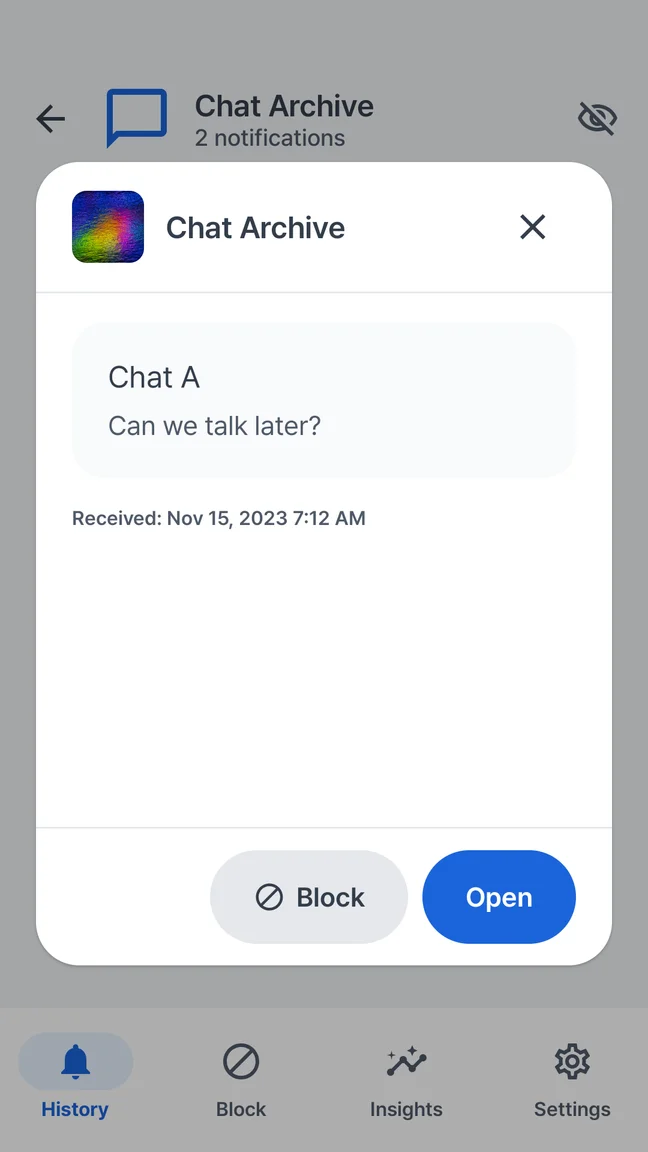
The preview, in a place of its own.
Open a saved item in Quietly to read the available notification text. You stay in your notification history until you choose an action that opens the source app.
- Check delivered message text in Quietly
- Search for a name, place or phrase you received
- Choose when to open the original conversation
Android 7.0+ · Free with ads · No account
Message previews