Do Android message previews send read receipts?
Need the address now, but want to reply later? Understand the difference between reading saved notification text and sending an action to your messenger.
The short answer
Reading a saved message preview in Quietly does not itself open the original conversation. The messenger controls read receipts, so Quietly cannot guarantee unchanged read status across every app. Tapping the original notification to open a chat, replying from a notification or choosing a mark-as-read action is different from viewing saved text.
On this page
How is a message preview different from a read receipt?
Imagine a friend sends you a restaurant address. You need the address now, but want to continue the conversation after work. If Quietly saved the message's notification text, you can read that saved content without entering the original chat.
A message preview is content the messenger included in an Android notification. A read receipt is the read status the messenger shows the sender. Notification content and read status are separate pieces of information. The appearance and availability of read receipts also depend on the app and its settings.
Android's notification listener receives posted notifications. This interface does not supply a messenger's conversation history or read status. See the official Android notification listener reference for the underlying mechanism.
Quietly displays the notification content it received. It does not sign into a messaging account to fetch an entire chat, or uncover hidden text behind a generic “new message” notice. The product scope described here comes from our Quietly message previews information.
Are viewing a preview, opening a chat and replying the same action?
No. Check the action you choose, as well as the screen you are on.
| Action | What it does | How to think about read receipts |
|---|---|---|
| Read only the text of a saved Quietly item | Displays notification content already received and saved. | This action does not itself open the original conversation. It is not a guarantee about every messenger's read status. |
| Tap the original message notification or open the source app | Opens a messenger screen or conversation. | The source app's read-handling behavior may apply. |
| Use a notification's reply or mark-as-read button | Sends a reply or another action to the source app. | Treat this separately from viewing text. The app determines its effect on read status. |
| View a photo, voice message or full conversation | Opens content in the original messenger. | Quietly's saved notification text cannot reconstruct the full content. |
Android supports opening an app screen when a notification is tapped, and separately supports delivering a direct reply without opening an app screen. Not opening a conversation does not prove that no action was sent to the app. See the official documentation on notification tap actions and direct replies.
Also distinguish an alert disappearing from a sender seeing a read receipt. Removing an item from a notification list alone does not tell you the messenger's read status.
How to check read receipts on your own phone
If read status matters, check the messenger and device you actually use. The messages below are illustrative examples, not reported compatibility test results.
- Record the conditions. Note your phone model, Android version, messenger version and read-receipt settings. Close the conversation on other devices signed into the same account so their activity does not get mixed into your observation.
- Prepare recording first. Check Quietly setup and notification access. Confirm that the messenger sends new message text in notifications. Do not use a message that arrived before setup.
- Receive a fresh message A. Ask someone who agrees to help with the check to send a non-sensitive sentence such as “Preview check A: north entrance.” Have the sender check its current read status.
- Read only the saved text. View that item's preview in Quietly. Do not tap the original notification, open the source app, reply or select a mark-as-read action. Have the sender check whether the read status changed.
- Compare using a different message B. Receive “Chat check B: south entrance,” then open the original messenger's conversation. Compare the sender's read status. Reusing an already-read message A makes the two actions harder to distinguish.
- Record the action with its result. Keep the status after viewing A's saved text separate from the status after opening B's chat. To check direct replies, use another fresh message in a separate check.
If read receipts are disabled or the sender cannot see read status, this procedure cannot establish whether a message was marked as read. Do not extend one observation to other apps, group conversations or photo messages. Check again after app updates or relevant setting changes.
For setup, follow the notification access permission guide.
Why is a message preview missing or incomplete?
Start with what Quietly actually received and recorded in a notification. A message existing in the original conversation does not mean the entire text also exists in notification history.
| What you see | What to check first | What to expect |
|---|---|---|
| No record of the message | Was setup complete before arrival? Was notification access and processing active? Did the source app send a notification? | Notifications from before recording began are not created retroactively. |
| Only a name or “new message” | Did the source app include the body in its notification? Did its preview settings limit the text? | Quietly cannot reveal text the app did not supply. |
| Only part of a sentence | Did the delivered notification contain the full sentence? | Short notification text cannot reconstruct a complete chat. |
| A previously saved item is gone | Check Quietly retention, storage limits and whether the record was deleted. | Only records still retained can be read or searched. |
Do not assume hidden lock-screen text tells you exactly what Quietly received. Phone and source-app settings can affect the outcome; check the saved item itself. After changing settings, check with a new message.
To find an address or name in content already saved, use Quietly notification history search.
What can a saved preview not show?
Quietly is a notification inbox. It is not a messenger backup that reconstructs the original conversation, text absent from an alert, photos or voice files. Use the original messenger when you need more content.
If notification text was recorded before a message was unsent, that sentence may remain in a retained preview. This means a saved notification remains; it does not mean the original unsent message was recovered. Content that was never recorded cannot be searched.
Use previews to check a useful detail before returning to a conversation later. If you need certainty about the sender's read status, do not treat a notification app's features as a guarantee.
Review notification access and saved content
Notifications can contain private conversation text. Quietly processes notification content and history search on your device. Separate ads, purchases and limited usage or technical services can use the network. Local notification storage is a different claim from every part of the app operating without a network connection.
Before enabling access, read the privacy information and notification access explanation, then choose the retention you need. You can delete retained history when a saved preview contains content you no longer want to keep.
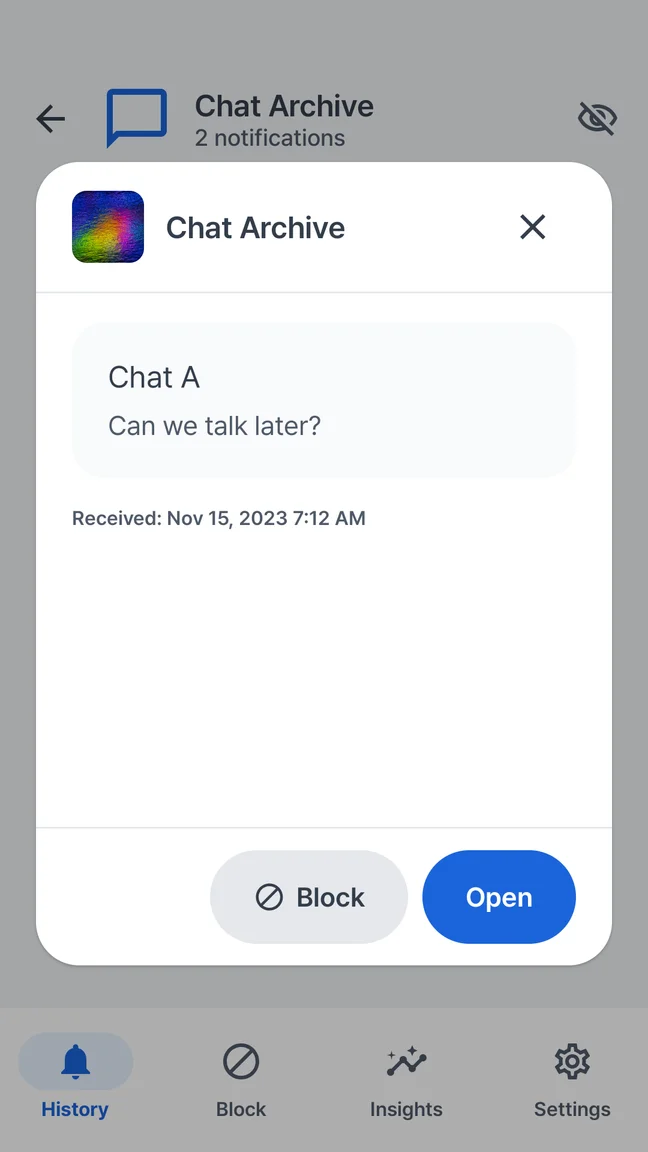
The preview, in a place of its own.
Open a saved item in Quietly to read the available notification text. You stay in your notification history until you choose an action that opens the source app.
Message previewsGet the appSources and product information
Android behavior is linked to official documentation. Quietly details come from our product information; examples are illustrative. Settings can vary by phone and app.