
Block Promo Notifications, Keep Delivery Alerts on Android
A shopping app can send both a sale and a parcel update. Learn how to choose a phrase, spot mixed messages and check the alerts you want to keep.
The short answer
Check the app’s own marketing preferences first, then its notification categories on Android 8.0 or later. If these cannot separate promotions from order updates, a Quietly rule can match the sending app and a recurring promo phrase. Delivery text that does not match stays outside that rule, but other rules and phone settings can still affect it. Quietly removes notifications after they appear, so a sound or banner may occur first.
On this page
The examples below are invented to explain the conditions. This article is based on documentation and Quietly product information, not a device test or a compatibility test with a shopping app.
Which control should you try first?
Keep the app’s main notification switch on while looking for a more specific control. An app can have its own marketing preferences even when Android puts its alerts in one category.
| Control | What it changes | What to check for delivery alerts |
|---|---|---|
| Preferences inside the shopping or delivery app | Promotional messages the app chooses to send | Keep order updates enabled; confirm with a new update. |
| Android notification categories | A category defined by the app | Disable only a category dedicated to promotions. Shared categories can include deliveries. |
| A Quietly text rule | Notifications from the selected app that match your title or text conditions | Nonmatching wording is outside this rule. Other rules can still remove it. |
Android notification channels are available from Android 8.0. Quietly supports Android 7.0 or later; that does not make category settings available on Android 7. Menu names and categories vary. Follow the built-in notification settings guide if you have a separate promotion switch.
Compare four messages before choosing a phrase
Assume a Block rule selects Shopping app A and notification text contains “Flash sale”, with no title or time condition. These are expected matches for that condition, not measured results.
| App | Notification title | Notification text | Matches this rule? |
|---|---|---|---|
| Shopping app A | Today’s offers | Flash sale: 30% off selected items | Yes: both the app and text match. |
| Shopping app A | Order update | Your parcel is out for delivery | No: the phrase is absent. |
| Shopping app A | Order dispatched | Track your parcel. Flash sale on your next order | Yes: a useful update also contains the phrase. |
| Shopping app B | Today’s offers | Flash sale starts now | No: this is a different app. |
The mixed message is the important counterexample. A text rule does not understand which part is a delivery update. Words such as “today,” “order” or “voucher” may also appear in information you want. Choose wording that separates your actual notifications, rather than simply choosing a short word.
Check the field too. A phrase in the title will not satisfy a condition that checks only the body. If you add both title and text conditions, both must match along with the selected app. Use the exact wording you received; do not assume every store uses the same campaign phrase.
Create one narrow rule
- Review notification access and what Quietly can read, then complete setup if you agree. Recording begins with new notifications while processing is active.
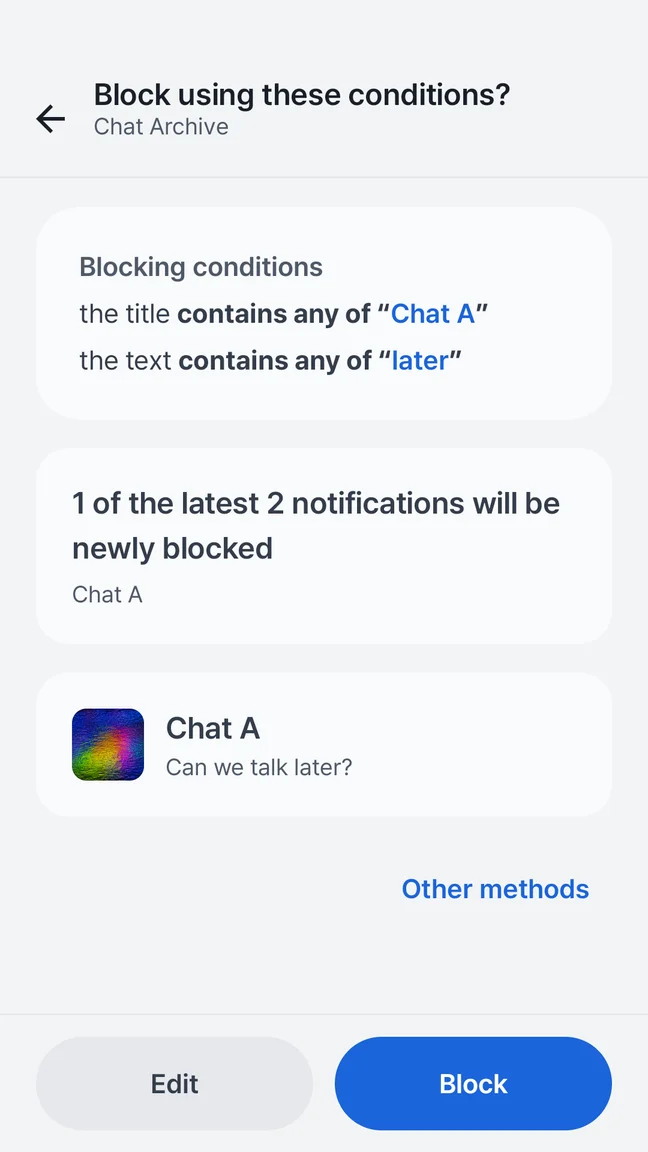
- Open a real unwanted notification in History and choose Block. Review the proposed rule instead of immediately saving it.
- Keep the sending app selected. Choose a distinctive phrase in the field where it actually appears, and remove unintended title, text or time conditions.
- Save one Block rule. Keep a note of its conditions so you can disable or revise it easily.
The keyword rule guide covers the screens in detail. Add a schedule only if the same wording is welcome at one time and unwanted at another. A schedule does not identify delivery content.
Check new promotions and new order updates
Observe a fresh promotion and a fresh delivery update from the selected app. Compare their actual titles and text with the rule. If a mixed message occurs, check it separately. Do not make a purchase just to test a rule; use updates you would receive anyway, and keep the rule off if missing an update is unacceptable.
Record the phone model, Android and Quietly versions, source app, rule conditions, other active rules and modes, and what appeared or disappeared. Record sound separately from removal. A recent-history estimate is only a sample of past wording, not a promise about future messages.
Successful-block records and saving their content are separate options that start off, as explained in Quietly’s privacy information. An absent record alone cannot prove that an alert was blocked or never sent. Do not treat the four illustrative rows above as test results from your phone.
What if a delivery alert goes missing?
First disable the new rule and inspect other Block rules. Block rules take priority over the “Important notifications only” mode; matching one of its important patterns does not rescue a message that also matches a Block rule. While that mode is active, it also excludes notifications outside its important patterns. See the blocking feature and its limits.
Next check the source app’s order-notification preferences, Android’s app and category switches, notification access and background restrictions. On Galaxy devices, Samsung notes that deep-sleeping apps may not show notifications; consult its missing-notification guidance. Quietly cannot recreate an alert the source app never posted. Use the order screen to confirm delivery status and get setup help if processing has stopped.
Common questions
Will a text rule prevent the notification sound?
Not reliably. Android posts the notification before Quietly removes it. For preventing an interruption, review the source app’s controls, category sound settings or Do Not Disturb and its exceptions. Some system or ongoing notifications cannot be removed.
Do keywords require Pro?
No. The free version includes up to five saved rules, including text and schedule conditions. Pro removes that limit. A paid plan does not make a broad phrase safer for delivery updates.
Why does another promotion still appear?
Its app, wording, field or timing may differ. Inspect that new alert before broadening the rule. If promotions and necessary updates cannot be separated by the available conditions, use the app’s marketing controls or leave that rule disabled.
Small rules. A noticeable difference.
Start from an unwanted notification, review the proposed conditions, and save a rule you understand. The free app includes up to five saved rules, including schedules.
Notification blockingGet the appSources and product information
Android behavior is linked to official documentation. Quietly details come from our product information; examples are illustrative. Settings can vary by phone and app.